
Wordpress

How to handle “WordPress memory limit” related errors

WordPress is a platform known for its high memory consumption. In many scenarios, you may encounter memory limit-related errors or warnings in WordPress and may need to increase the limit. Here are some important tips to handle that situation properly. Common Memory Limit Related Errors in WordPress: Increasing Your WordPress Memory Limit using wp-config Best
How to handle “WordPress memory limit” related errors

WordPress is a platform known for its high memory consumption. In many scenarios, you may encounter memory limit-related errorsor warnings in WordPress and may need to increase the limit. Here are some important tips to handle that situation properly.

  • Fatal error: Maximum execution time exceeded: This indicates the script timed out due to insufficient memory to process the task.
  • White screen of death: A blank or white screen can occur when WordPress runs out of memory during processing.
  • Internal server error (500): A general error message often triggered by memory limitations.
  • “Memory exhausted” warnings: WordPress may display explicit warnings about exceeding memory limits.
  • Plugin activation failures: Some plugins require more memory to function properly and may fail to activate with insufficient resources.
  • Image upload issues: Uploading large images can trigger memory errors if the limit is too low.
  • Slow loading times and performance issues: WordPress performance can suffer significantly when memory resources are constrained.

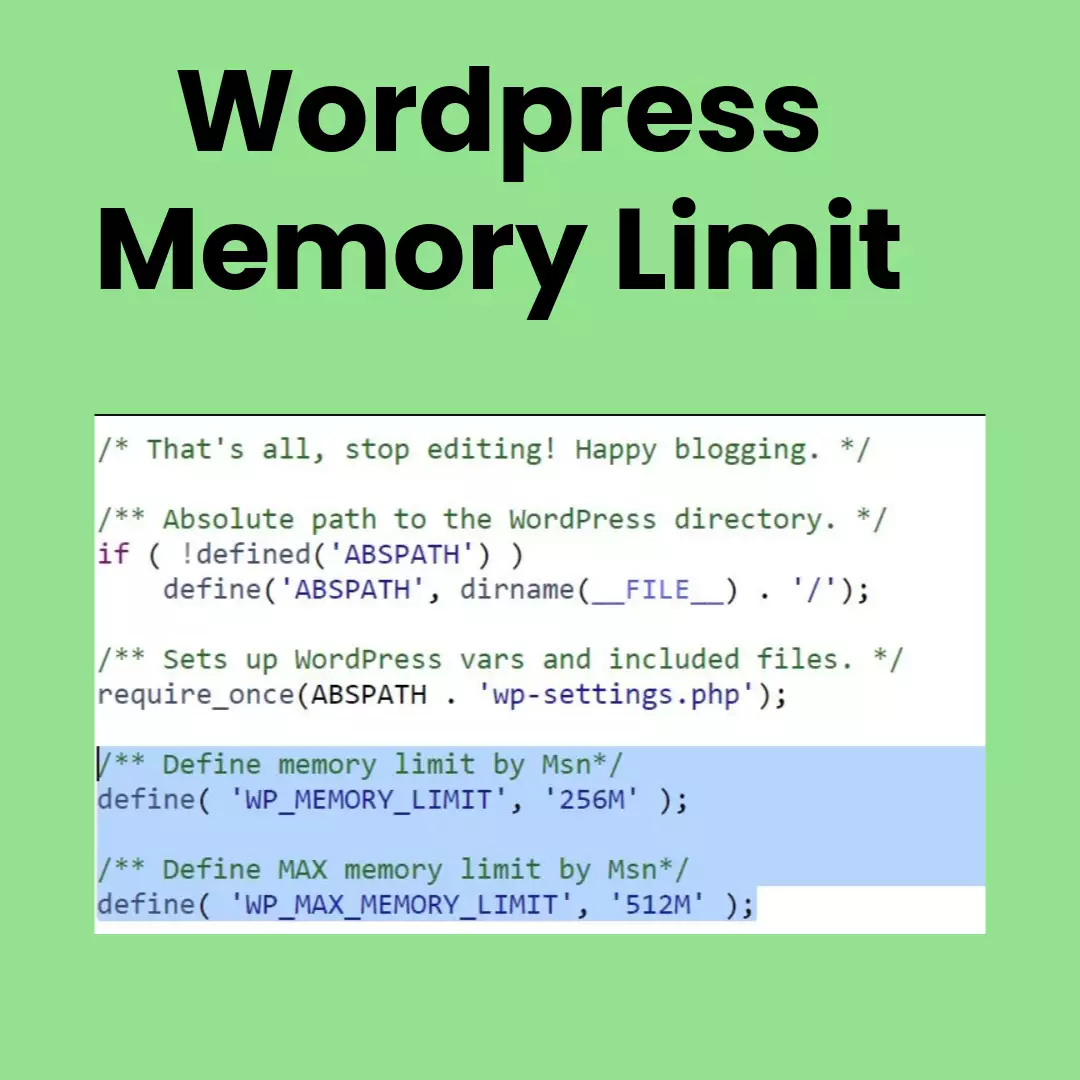
Increasing Your WordPress Memory Limit using wp-config

  • Back up your wp-config.php file.
  • Open the file with a text editor.
  • Look for the line define('WP_MEMORY_LIMIT', 'X'); where X is the current memory limit.
  • Replace X with a higher value (recommended: 256M to 512M).
  • Save the file and upload it back to your server.
  • Use a plugin: Plugins like WP Memory Limit or WP Super Cache can help manage memory usage.
  • Optimize plugins and themes: Update and deactivate unnecessary plugins and themes to reduce memory usage.
  • Monitor memory usage: Tools like WP-CLI and New Relic can help monitor memory usage and identify bottlenecks.
  • Upgrade your hosting plan: If memory limitations are a recurring issue, consider upgrading your hosting plan for increased resources.

More to read

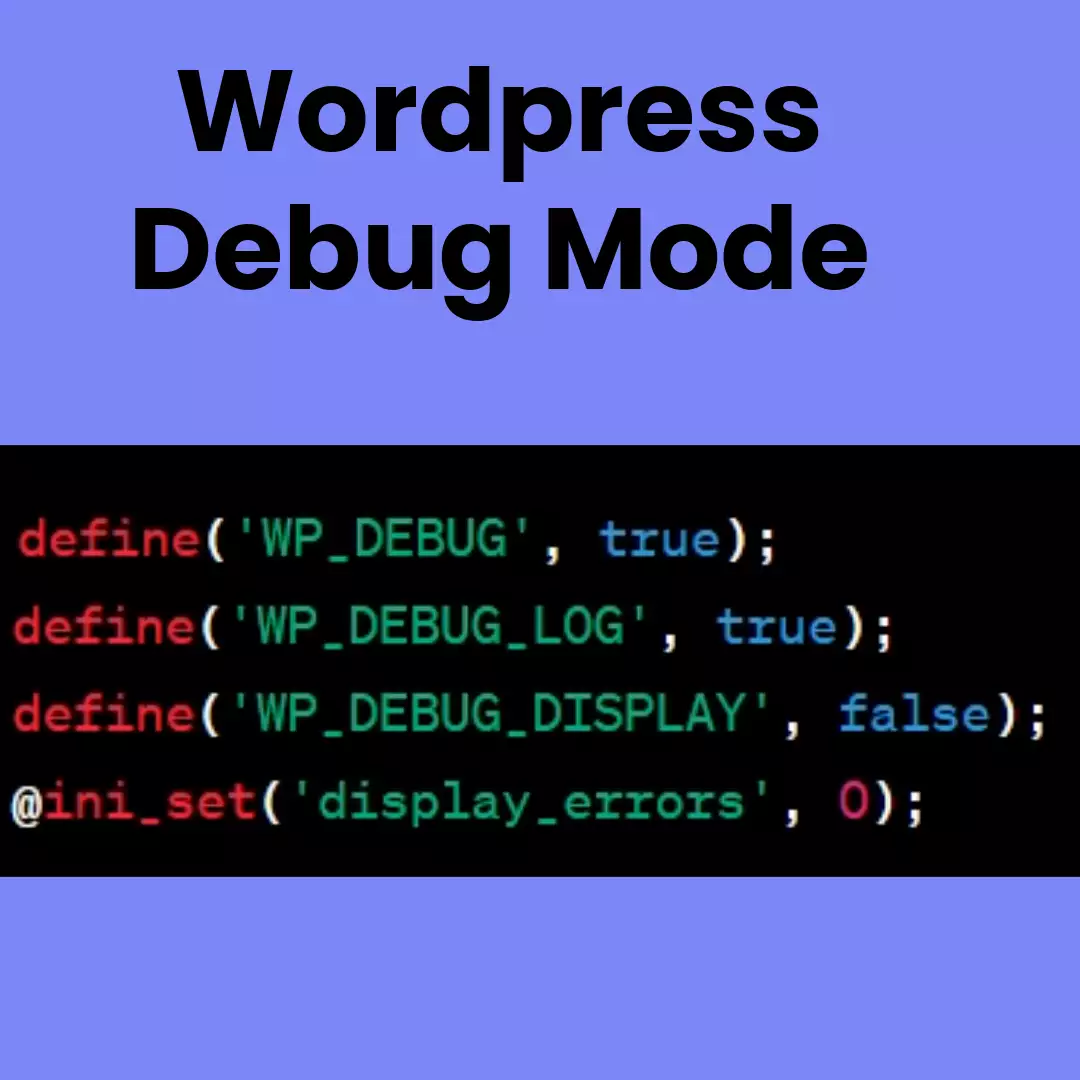
How to Enable Debug Mode in WordPress

Wordpress

How to Enable Debug Mode in WordPress

Debug mode is used to identify and troubleshoot critical errors on a WordPress website. By default, debug mode is disabled because it can slow down the website. We can...
Read more
How to handle critical errors in WordPress

Wordpress

How to handle critical errors in WordPress

As part of our SEO profession, we need to work with WordPress-based websites regularly. In some situations, we may encounter a critical error message while accessing the...

Read more