
Wordpress
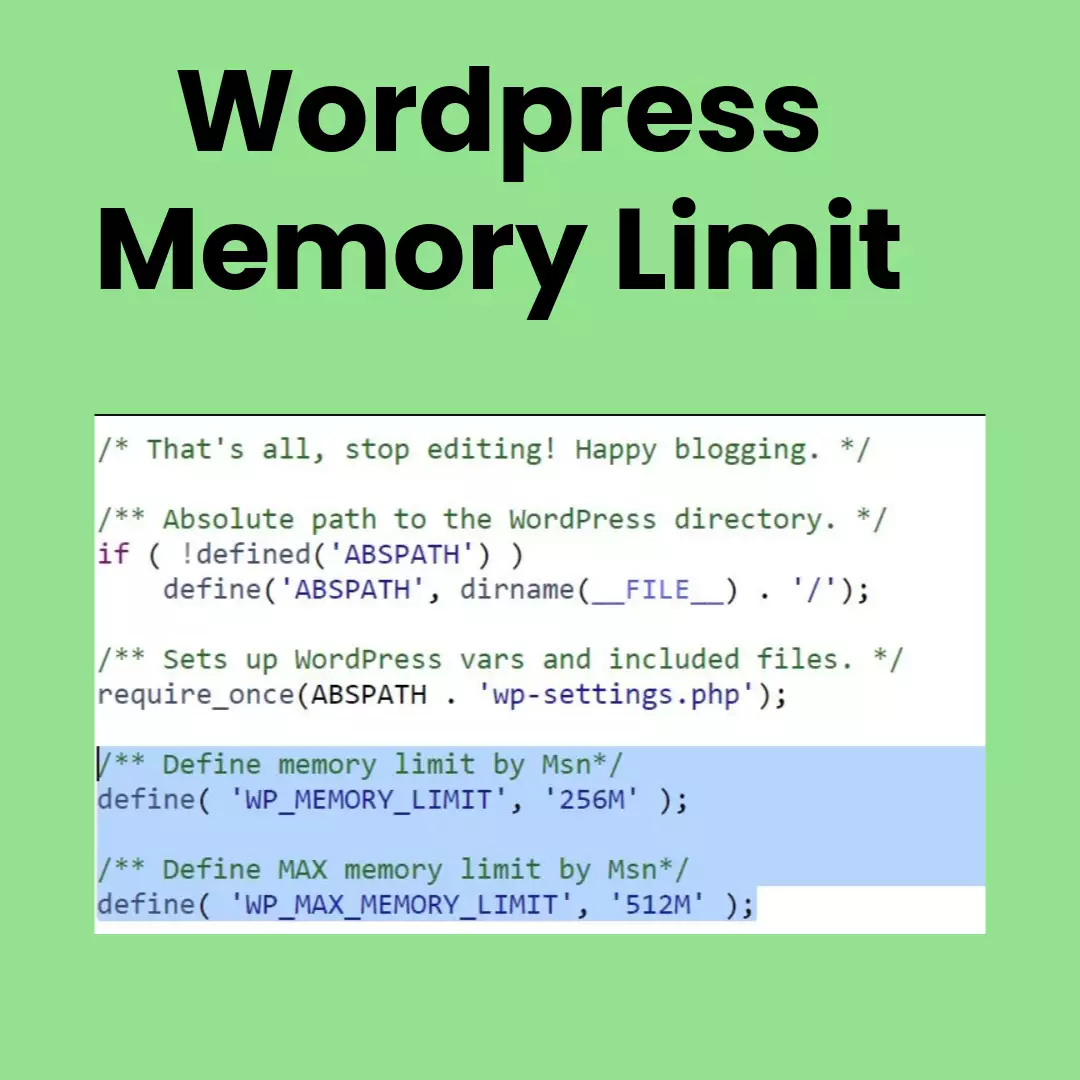
How to handle “WordPress memory limit” related errors
WordPress is a platform known for its high memory consumption. In many scenarios, you may encounter memory limit-related errors or warnings in WordPress and may need to...
Read more
As part of our SEO profession, we need to work with WordPress-based websites regularly. In some situations, we may encounter a critical error message while accessing the site. At that time, the site cannot be accessed due to that error. Here are some tips to handle WordPress critical errors. First, you need to activate WordPress
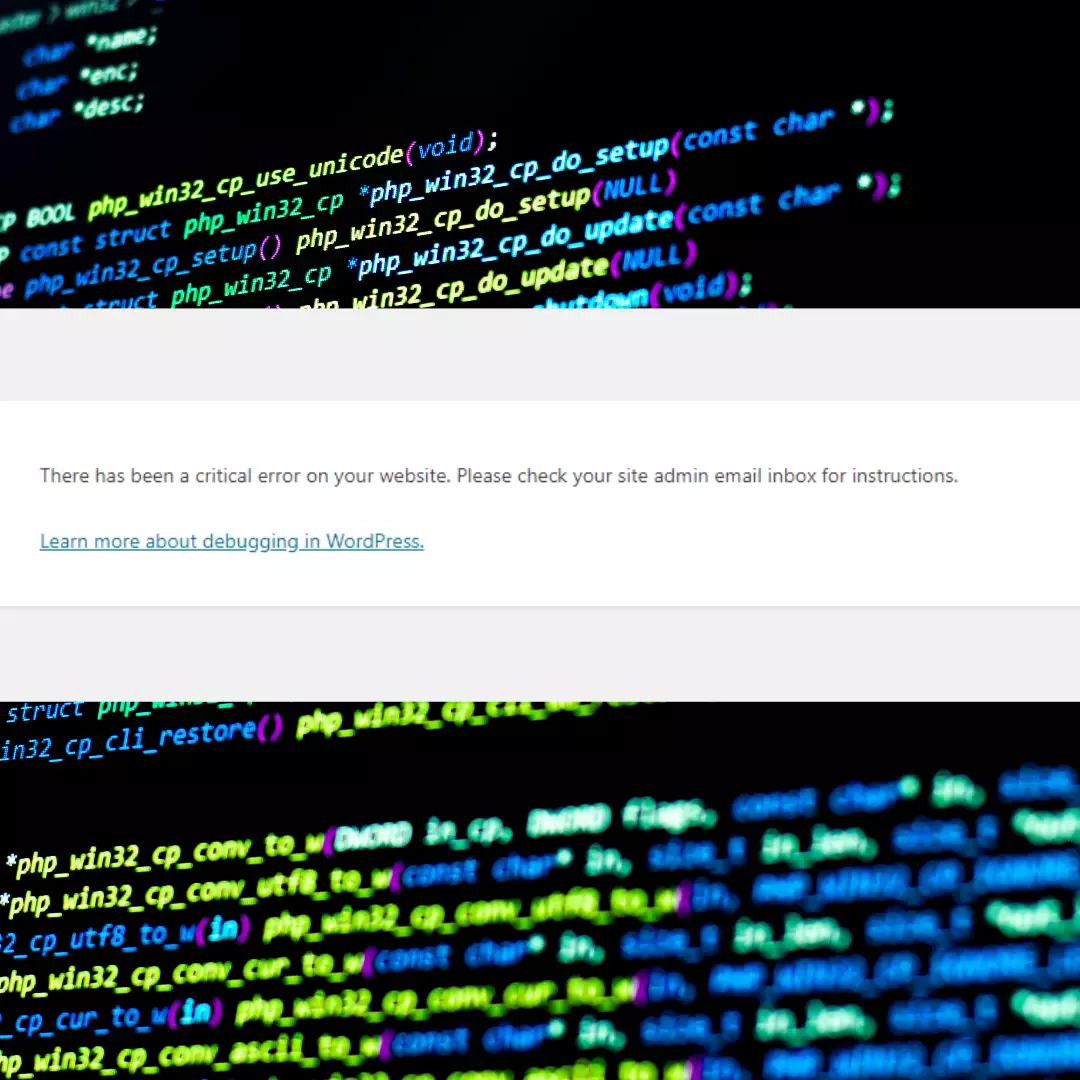
As part of our SEOprofession, we need to work with WordPress-based websites regularly. In some situations, we may encounter a critical error message while accessing the site. At that time, the site cannot be accessed due to that error. Here are some tips to handle WordPress critical errors.
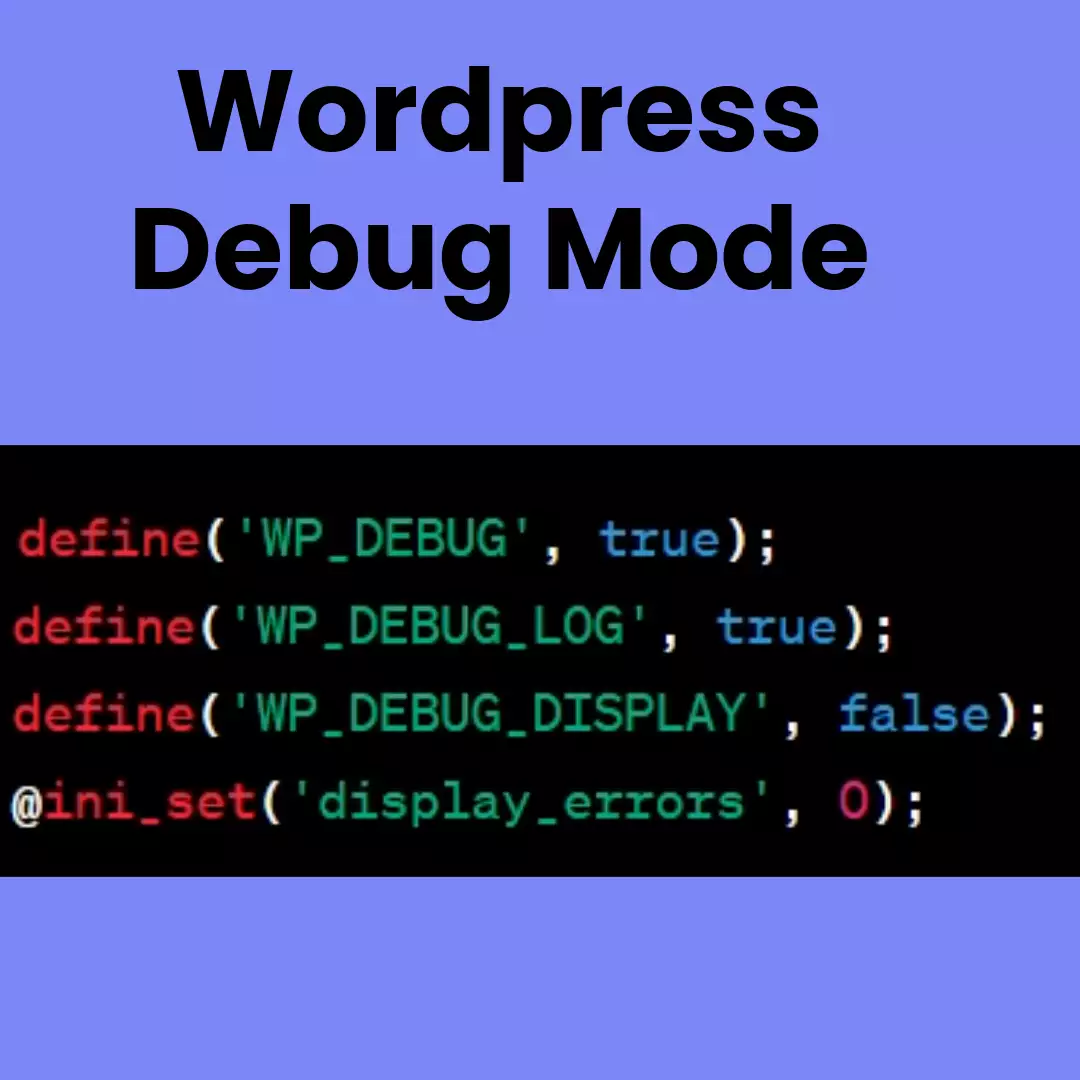
First, you need to activate WordPress debug mode to get the full error message. By default, debug mode will be off. This error message will show which file is causing the issue. Based on that error, we need to find the solution.
| Problem | Solution |
|---|---|
| Plugin or Theme Conflict | Deactivate all plugins and switch to a default theme. Reactivate plugins one by one to identify the culprit. Update or re-install the conflicting plugin/theme. |
| Corrupted WordPress Core Files | Reinstall WordPress core files without affecting your content. Restore your website from a backup. |
| Memory Limit Exceeded | Increase the PHP memory limit in your wp-config.php file. Optimize your website for better performance. Contact your hosting provider for assistance. |
| Database Connection Error | Check your database credentials for typos or incorrect values in wp-config.php . Repair your database using a plugin like “WP-DBManager“. Contact your hosting provider for database support. |
| Permissions Issues | Check file and folder permissions and set them to their correct values. Use a plugin like “File Manager” to manage permissions. |
| White Screen of Death (WSoD) | Enable WordPress debug mode to see the error message. Check your error logs for more information. Use the information to troubleshoot the specific error. |
| Malware Infection | Scan your website for malware using a security plugin like “Sucuri“. Remove any infected files and clean your database. Restore your website from a clean backup. |
Wordpress
WordPress is a platform known for its high memory consumption. In many scenarios, you may encounter memory limit-related errors or warnings in WordPress and may need to...
Wordpress
Debug mode is used to identify and troubleshoot critical errors on a WordPress website. By default, debug mode is disabled because it can slow down the website. We can...